← Documentation
Step 2 of 7Tenant Owner
Create a Team
In PYC, permissions are assigned to teams - not to individual users. You must create a team first, then add users to it, before you can give anyone access to cloud resources.
1
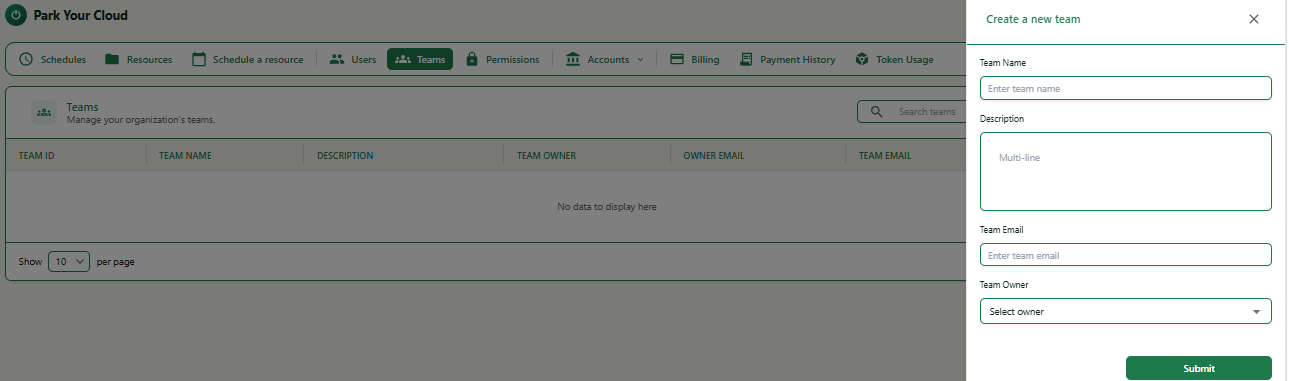
Navigate to Teams and open the Create Team panel
Expand
How to get here: Click Teams in the top navigation bar, then click the + Add team button at the top right. A panel will slide in from the right.
2
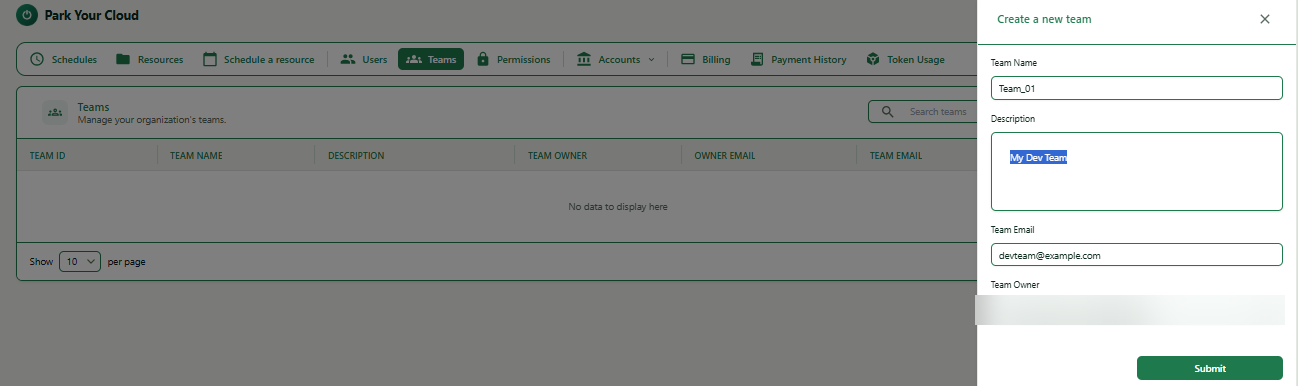
Fill in the team details and submit
Expand
| Field | What to enter | Example |
|---|---|---|
| Team Name | A short, unique name to identify this team. | Team_01 |
| Description | Brief description of the team. Optional but recommended. | My Dev Team |
| Team Email | A group email for team notifications. Optional. | devteam@example.com |
| Team Owner | Select the user who will manage this team from the dropdown. | Jane Doe (jane.doe@example.com) |
1Fill in the Team Name, Description, Team Email, and Team Owner fields.
2Click Submit.
3
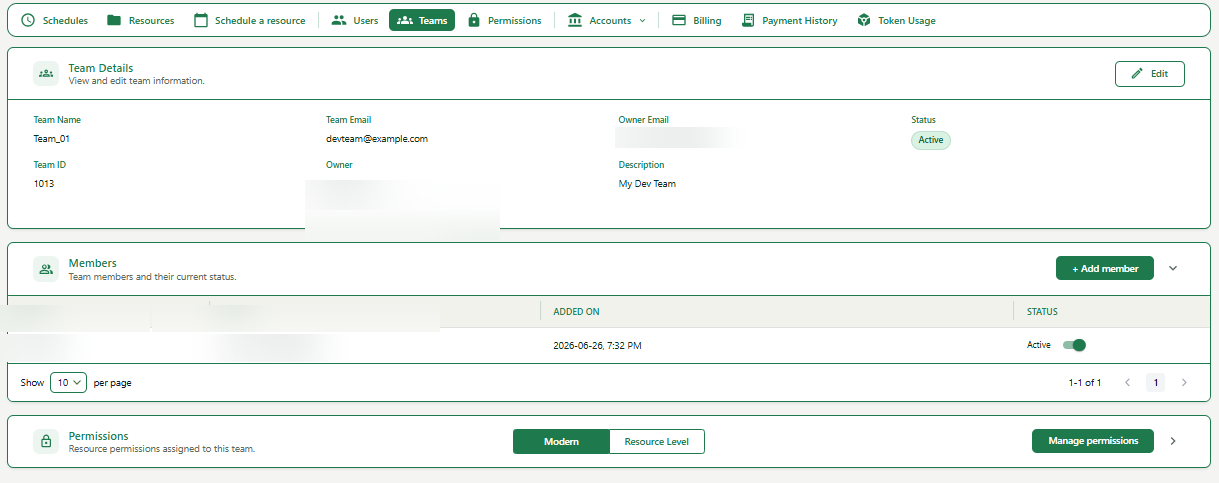
Review the Team Details page
Expand
After submitting you will land on the Team Details page, which shows:
- ■Team info: Name, ID, Email, Owner, Description, and Status.
- ■Members section: Users currently in the team.
- ■Permissions section: Cloud resources this team can access (Modern and Resource Level tabs).
4
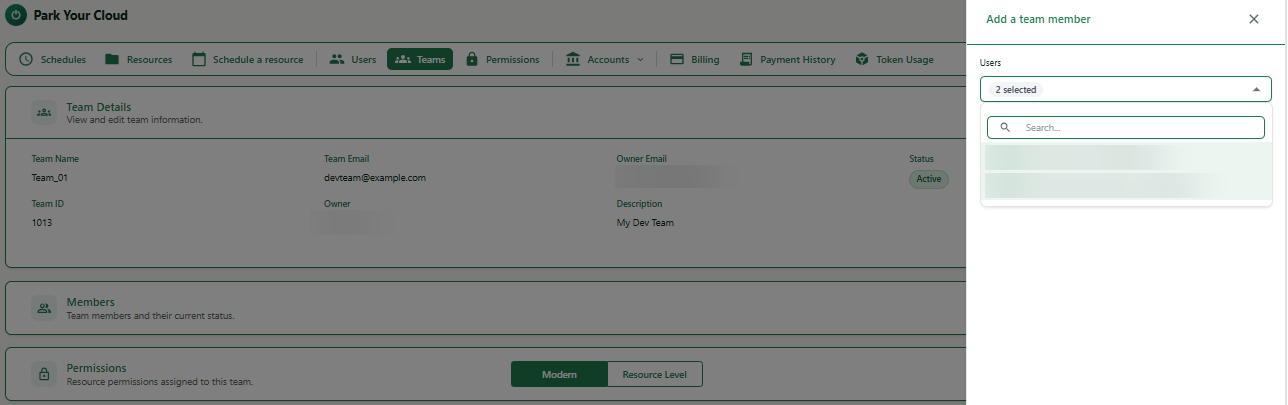
Add members to the team
Expand
Note
Only the team owner can add members to a team.
1Click + Add member in the Members section.
2A panel opens with a searchable dropdown of all users in your tenant.
3Select one or more users - selected users show a checkmark next to their name.
4Click Submit.
Tip
You can select multiple users at once before clicking Submit.
Note
The users will appear in the Members table immediately after submitting. A user can be added to multiple teams by their team owners.