← Documentation
Step 3 of 7Tenant Owner
Set Opted Regions for Cloud Accounts
PYC needs to know which cloud regions you want to monitor for each cloud account or project. Opted regions are required before running Resource Discovery and assigning permissions.
1
Navigate to Cloud Accounts
Expand
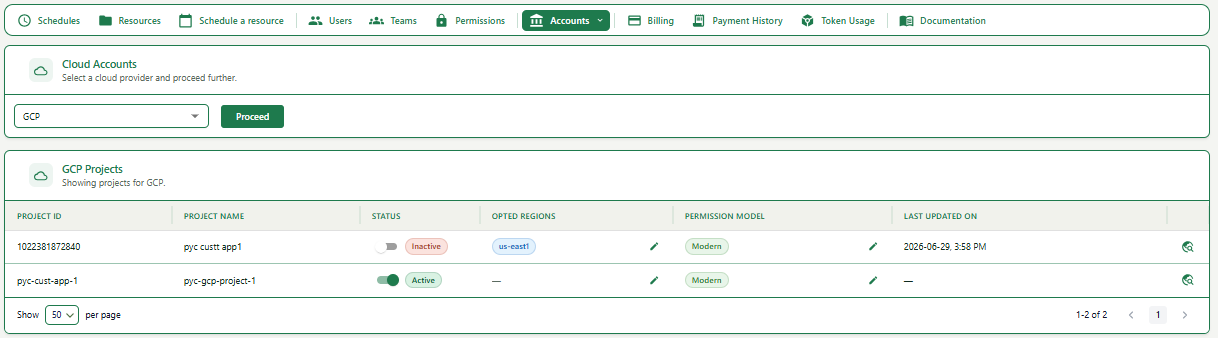
1Click on Accounts in the top navigation bar and select your cloud provider (e.g., GCP).
2Click Proceed. You will see a list of all onboarded projects with Status, Opted Regions, and Permission Model columns.
2
Select regions for each account or project
Expand
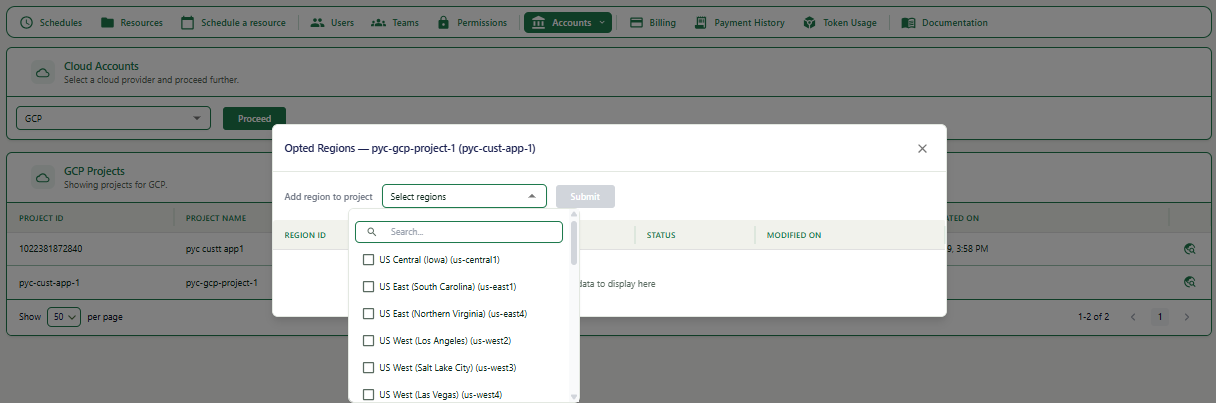
1Click the edit (pencil) icon next to Opted Regions for the project you want to configure.
2The Opted Regions modal opens. Click the Select regions dropdown and pick one or more regions.
3Click Submit to save.
Note
You can return to this screen at any time to add or remove opted regions for a project or account.
3
Understand the Permission Model column
| Option | When to use it |
|---|---|
| Modern | Team gets access to ALL resources of a type (e.g. EC2, RDS, etc.) in the selected region and account. Best for environments where an account / project / subscription is dedicated to a specific team or application. |
| Resource Level | Team gets access to only specific, hand-picked resources in the account. Best for environments where multiple teams share an account / project / subscription. |
Note
You can change the Permission Model by clicking the edit icon next to that column. The model you set here determines how permissions work in Step 5.