← Documentation
Step 4 of 7Tenant OwnerUser
Run Resource Discovery
PYC scans your cloud accounts to find all resources (VMs, databases, etc.) in the opted regions. These discovered resources are what you will schedule and manage.
1
Trigger discovery from the Cloud Accounts page
Expand
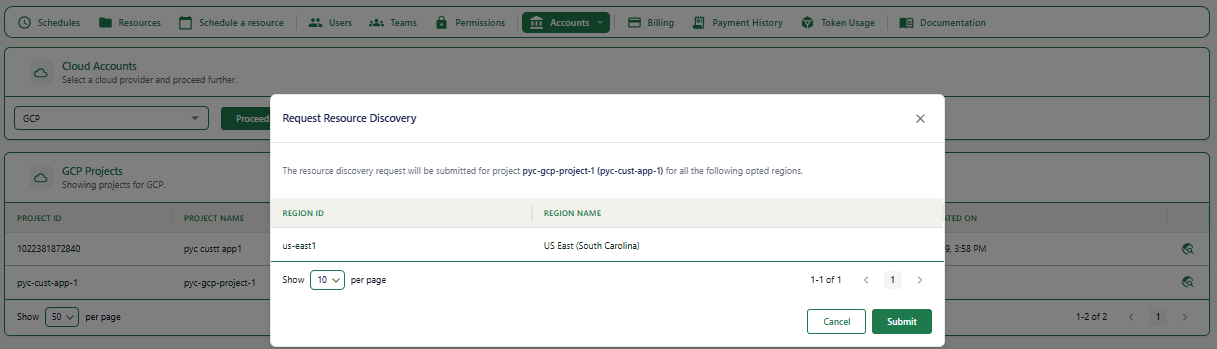
1On the Cloud Accounts page, click the discovery icon (circular icon with magnifying glass) on the right of the project row.
2A confirmation modal appears showing the project and opted regions.
3Click Submit. This will initiate a discovery of resources present in the selected project / account / subscription in the opted regions.
2
Wait for the discovery to complete
Expand
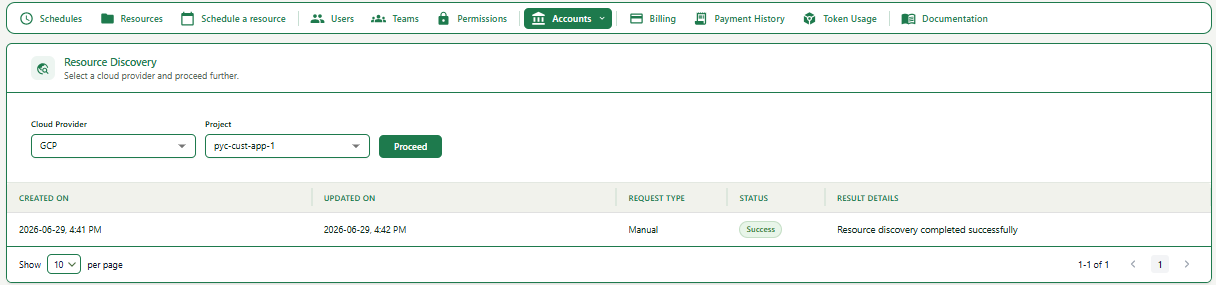
1To check discovery status, in the navigation menu go to Accounts and select Resource Discovery.
2Select your cloud provider, select the project / account / subscription, then click Proceed.
3The table will display the status of resource discovery requests.
Note
This table shows both manual and automated resource discovery requests.
Note
Discovery runs in the background and typically completes within a few minutes. Wait for the status to show Success before proceeding.
3
View your discovered resources
Expand
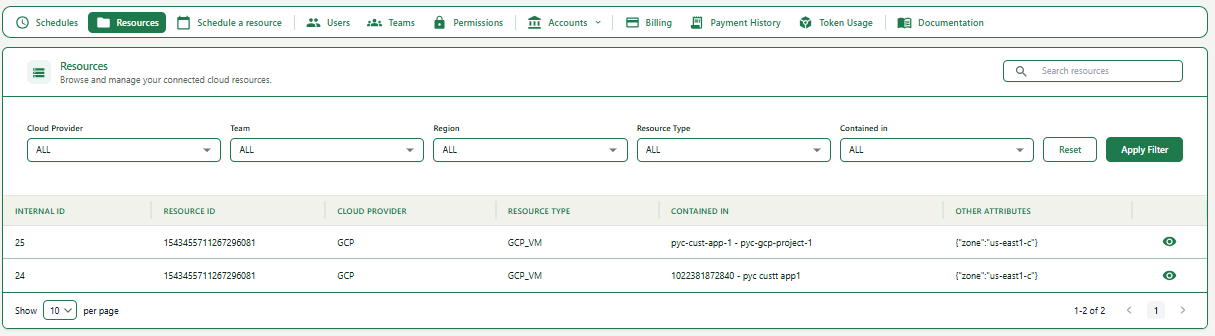
1Click on Resources in the top navigation bar to view all discovered resources.
2Use filters (Cloud Provider, Team, Region, Resource Type) to narrow down the list.