← Documentation
Step 5 of 7Tenant Owner
Give Permission to a Team
By default a team has no access to any cloud resources. You must assign which accounts, regions, and resource types (or specific resources) this team can see and manage. Choose the permission model that matches how your account was configured in Step 3.
1
Open your team's Permissions section
Expand
1Click on Teams in the top navigation bar, then open your team.
2Scroll to the Permissions section and click Manage permissions.
3Make sure the Modern permissions card is open.
Note
For Resource-level permissions, click the link given at the top right.
2
Select Cloud Provider and Resource Type
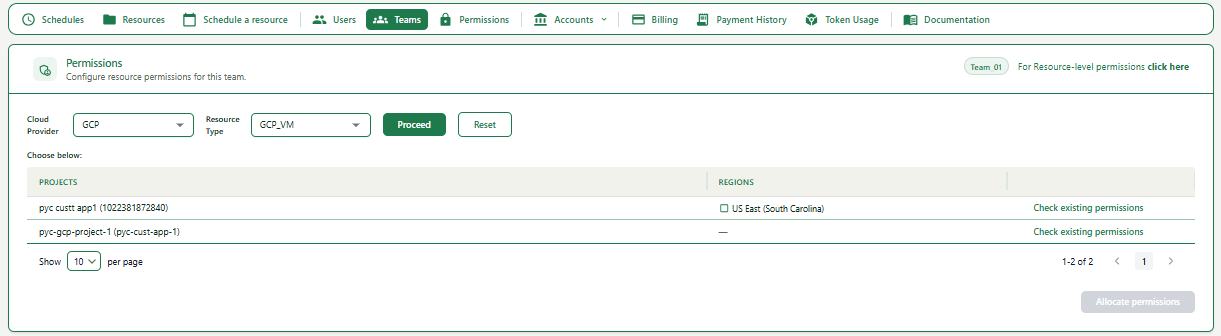
1Select Cloud Provider (e.g., GCP) and Resource Type (e.g., GCP_VM), then click Proceed.
2A list of projects appears, each showing available regions.
3
Allocate permissions to a region
Expand
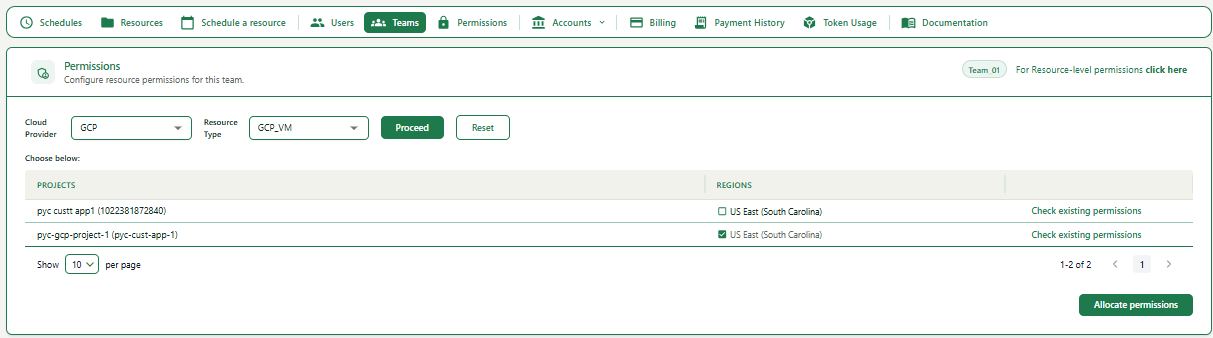
1Check the region checkbox next to the project you want to give access to.
2Click Allocate permissions.
Note
The team can now view and schedule all resources of the selected resource type in that project/account/subscription and region.